
Description of aplication
The application presented in this document is used to view map compositions created in the Map Composition Wizard. Map applications are divided into:
- public - if the creator of the application makes it available to non-logged-in users
- private - viewable only by authorised users (available after logging in)
Its basic functions include viewing map compositions along with their analysis and exporting results. The user can customise the view in terms of visibility of layers and data of interest.
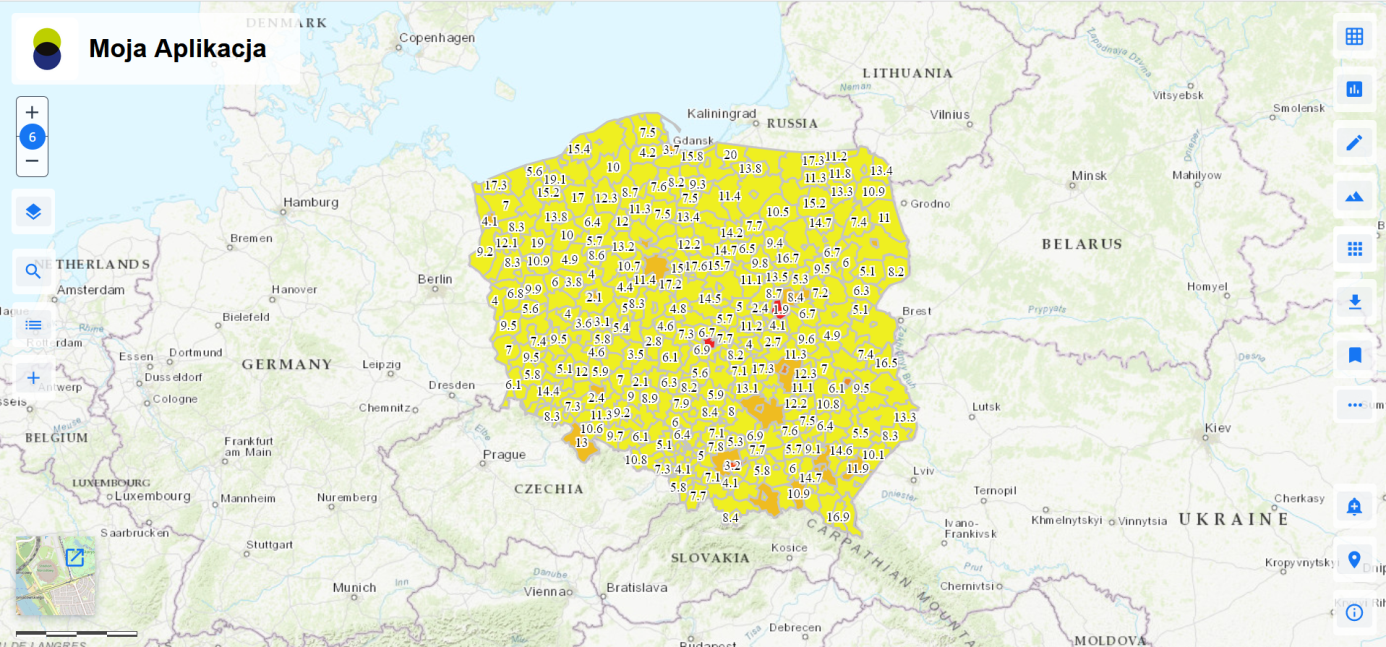
Rules of navigation in the application
Conventions used in the document
| Notation | Meaning |
|---|---|
| Functional name | Designation of the name of the functions or tools described |
| [Name of edit field] | Designation of an edit field "Name of the edit field" or a selection list. |
| {Control element name} | Designation of the control "Name of the control" such as: button, icon, checkbox, selection list item |
Opis elementów sterujący interfejsem użytkownika
| Icon | Description |
|---|---|
 | Text edit field |
 | Selection list |
 | Button (Radio button) |
  | Checkbox, switch |
     | Buttons |
A computer mouse is the main device used to operate the application. It is used for basic map navigation, as well as for launching and operating the application functions.
The control is intuitive and uncomplicated. All functions are activated by moving the mouse cursor over an appropriate icon and pressing LPM. To move around the map, hold down the LPM, then "drag" the map to the desired location and release the button. You can also move around the map using the cursors on your keyboard ("arrows").
To zoom in or out on the map, use the scroll wheel by moving the mouse up or down (you may also use the respective icons located in the bottom left corner).
The main window of the application contains a content and thematic map. The application also contains functionalities that the developer has decided to make available to users.